OpenCode 使用API教程
先安装opencode
使用nodejs
npm install -g opencode-ai
配置提供者
https://opencode.ai/docs/providers/
配置两个地方
提供者配置(没有这个文件就新建)
~ 代表用户的工作目录 如windows上 C:\Users\admin
~/.config/opencode/opencode.json

{
  "$schema": "https://opencode.ai/config.json",
  "provider": {
    "anthropic": {
      "options": {
        "baseURL": "https://api.new.bi/v1"
      }
    }
  }
}
这里我替换了现有的 anthropic 地址
模型名称:选择 模型广场 中支持 openai:/v1/chat/completions 的模型,复制模型名填写到模型ID中。Claude、deepseek等都支持,基本上所有文本模型都支持。 API KEY:创建并复制 API密钥 填写
密钥配置
这里我们配置一个 claude 平台的,在我们网站控制台,创建key 并选择我们claude相关分组 如claude 专属
~/.local/share/opencode/auth.json

{
  "google": {
    "type": "api",
    "key": "1111111111111111111"
  },
  "anthropic": {
    "type": "api",
    "key": "sk-xxxxxxxxxxxxx"
  }
}
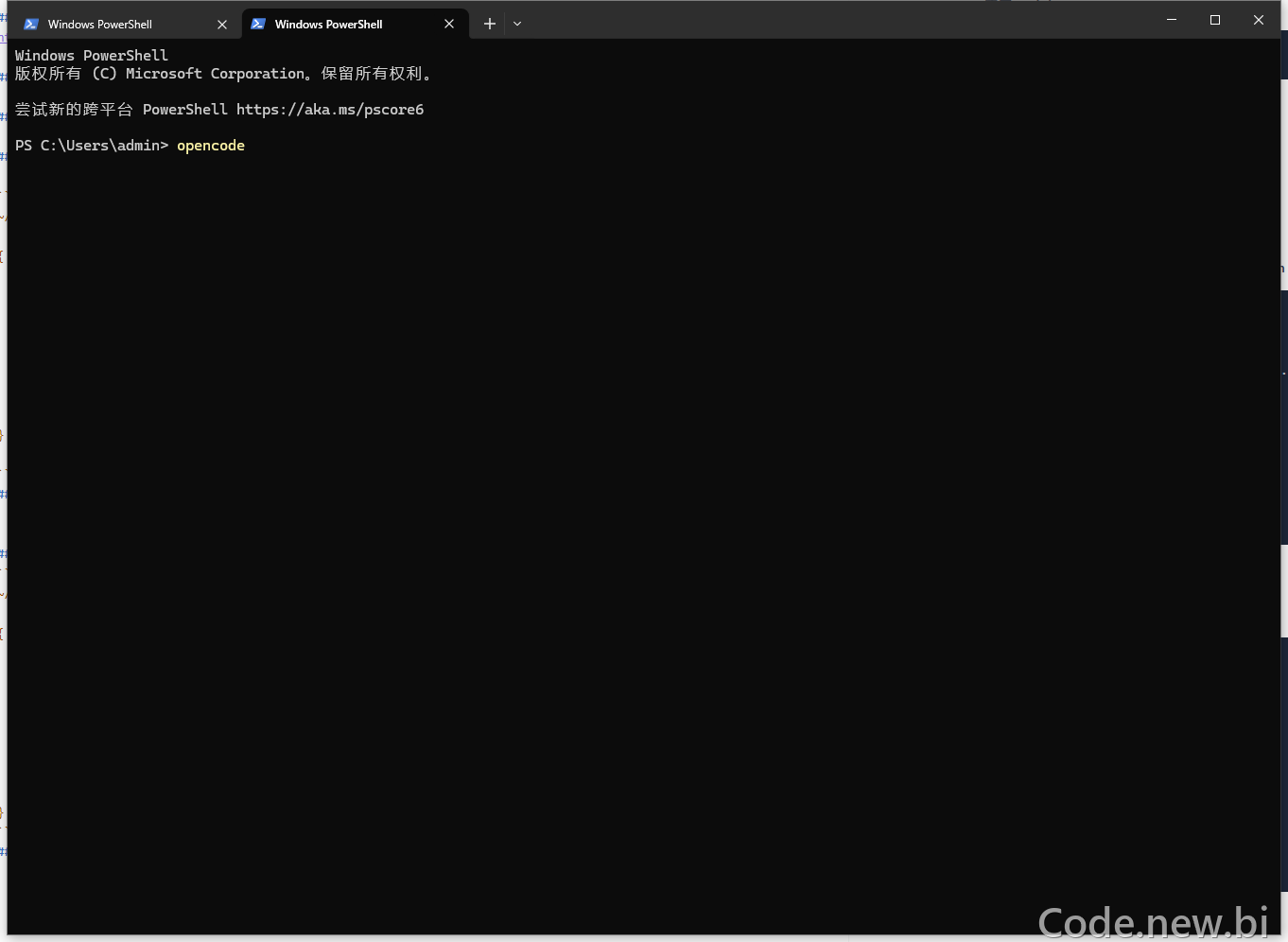
打开终端
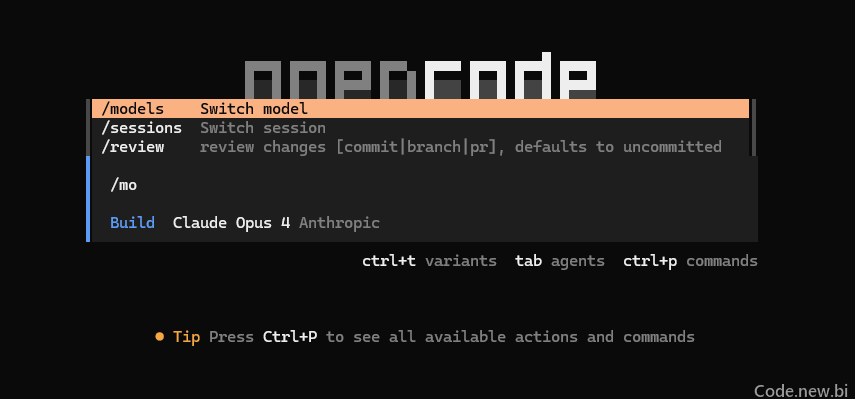
输入 /models
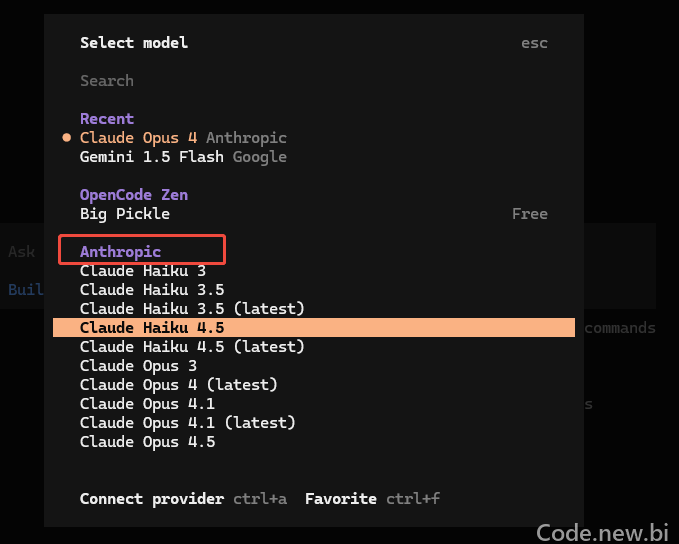
选择 anthropic 中的一个模型
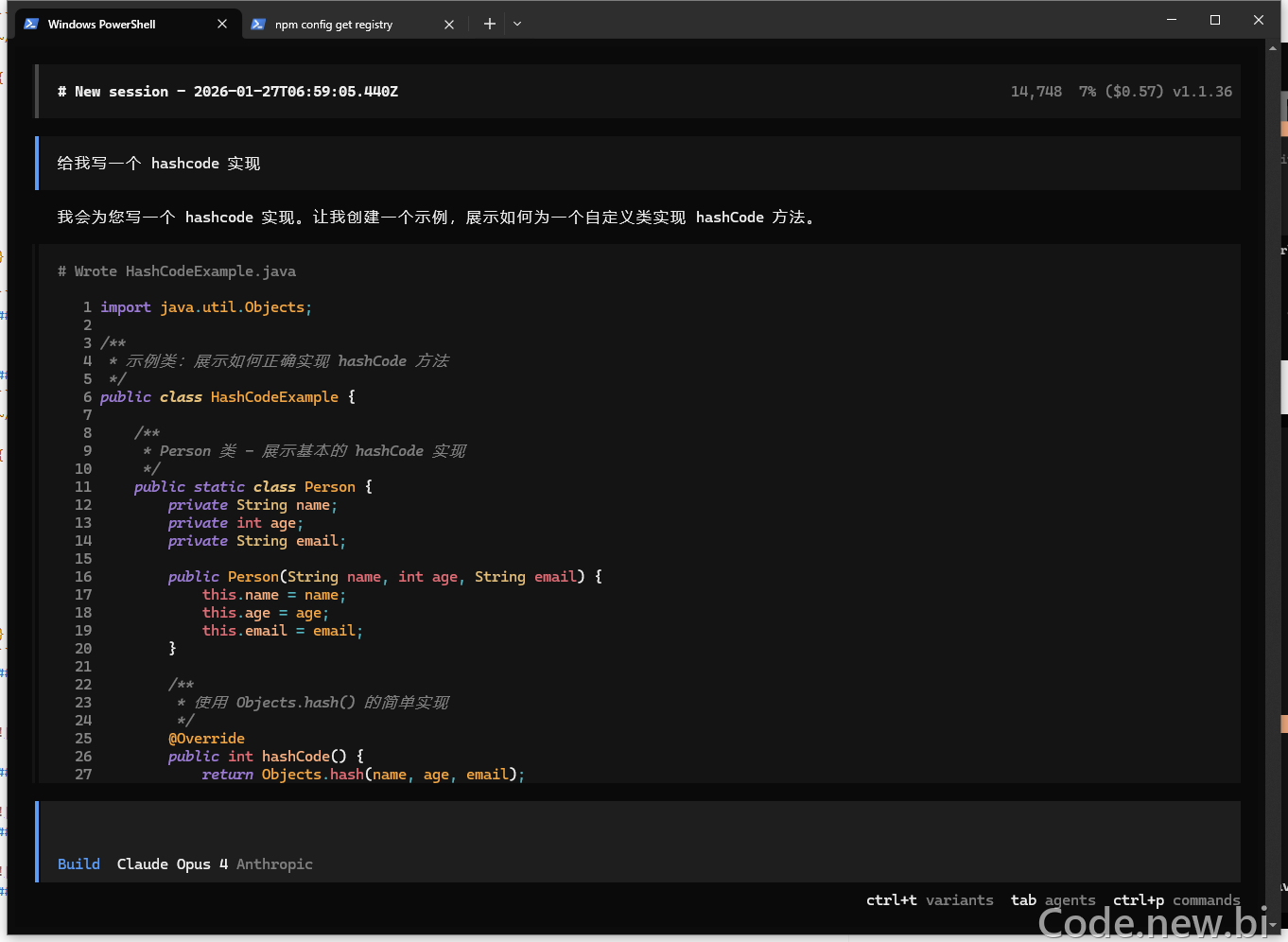
开始使用
按需选装 API图片视频Skill 方便OpenCode执行图片视频生成编辑任务。